
How to Integrate Salesforce with Power BI: A Complete Guide for Mid-Market Businesses

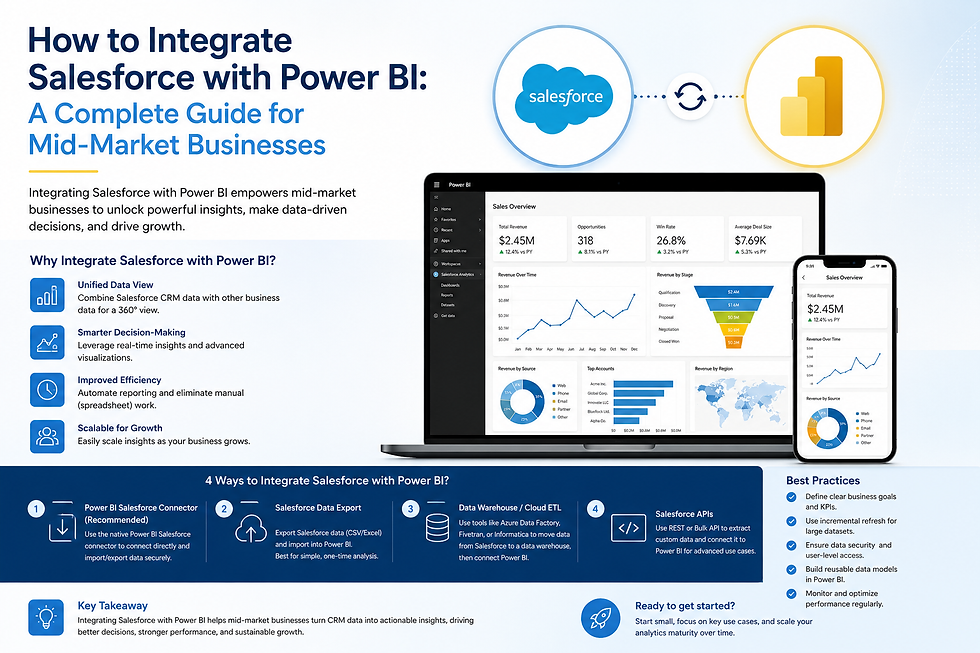
Salesforce is where your sales team tracks every deal, contact, and account interaction. Power BI is where your Finance, Operations, and Sales leaders want to see what all of that activity actually means for revenue, pipeline health, and commercial performance. The two platforms do not connect by default. Getting them to work together requires a deliberate integration architecture that matches your data volume, refresh frequency, and reporting requirements.
This guide covers the three main methods for connecting Salesforce to Power BI, how to choose the right approach for your mid-market business, and what you can build once the integration is in place.
Why Salesforce's Native Reporting Is Not Enough
Salesforce has its own reporting tools, including reports, dashboards, and the Einstein Analytics layer. For most mid-market businesses, these tools answer simple questions within the Salesforce data model. They do not answer the questions that require combining Salesforce data with other systems.
A Head of Sales asking which product lines generate the highest average deal size needs CRM data and accounting data in the same view. A Head of Finance wanting to see pipeline-to-revenue conversion rates by customer segment needs CRM data and billing data combined. A CFO asking whether customer acquisition costs are declining as the business scales needs CRM data, marketing spend data, and headcount data together.
None of these questions can be answered inside Salesforce alone. Power BI integration is the architecture that makes cross-system analysis possible without requiring a data analyst to manually pull and combine exports every week. If you run HubSpot rather than Salesforce, our guide to building a custom Power BI dashboard for HubSpot CRM covers the equivalent approach.
Method 1: Power BI Native Salesforce Connector
Power BI Desktop includes a native Salesforce Objects connector that authenticates via your Salesforce credentials and pulls data directly from your Salesforce org. This is the fastest integration to configure and works well for mid-market businesses with a single Salesforce org and moderate data volumes.
The native connector pulls standard Salesforce objects including Accounts, Contacts, Opportunities, Leads, Activities, and custom objects. You can import data on a schedule of up to eight times per day in Power BI Service with a Power BI Pro licence.
The limitations of the native connector become apparent at scale. For businesses with more than 500,000 Salesforce records, large custom object structures, or requirements for near-real-time refresh, the native connector introduces performance constraints. Report refresh times increase, and the connector does not support incremental refresh natively without additional configuration.
Method 2: Salesforce Reports Connector
Power BI also includes a Salesforce Reports connector that pulls data from your existing Salesforce reports rather than directly from objects. If your sales operations team has already built well-structured Salesforce reports with the right filters and fields, this connector can accelerate your Power BI build by reusing that report structure.
The reports connector is best suited for straightforward reporting requirements where your Salesforce reports already reflect the data shape you need in Power BI. It is less suitable for complex data transformations or for building a semantic model that joins Salesforce data to other sources, because the reports connector is read-only and does not support the level of query control that a direct API connection provides.
Method 3: Fivetran or Data Pipeline Integration
For mid-market businesses with high data volumes, complex Salesforce configurations, or requirements for a central data warehouse that feeds multiple reporting tools, a Fivetran or similar data pipeline integration is the most robust architecture. Fivetran replicates your Salesforce data to a cloud data warehouse such as Snowflake, Azure Synapse, or BigQuery on a scheduled basis. Power BI then connects to the warehouse rather than directly to Salesforce.
This architecture has three advantages for mid-market businesses. First, it is significantly faster for large data volumes because Power BI queries a purpose-built analytical database rather than a transactional CRM. Second, it enables cross-source joins at the warehouse layer, so Salesforce data can be combined with accounting, marketing, and billing data before it reaches Power BI. Third, it provides a historical data store that preserves Salesforce record history even when records are updated or deleted in the CRM.
The trade-off is higher initial setup complexity and ongoing pipeline maintenance. For mid-market businesses with fewer than 200,000 Salesforce records and straightforward reporting requirements, the native connector is often sufficient. For businesses with more complex needs, the pipeline approach delivers meaningfully better performance and analytical depth. Either way, applying solid data integration best practices keeps the result reliable.
What to Build Once the Integration Is Live
Pipeline and revenue dashboard
Connect Salesforce Opportunities to your accounting system to show pipeline, committed revenue, and recognised revenue in a single Power BI view. Your Head of Sales and Head of Finance see the same commercial picture for the first time. For layout inspiration, see our sales analytics dashboard examples for CEOs and senior leaders.
Sales team performance
Build rep-level dashboards showing pipeline by stage, win rate, average deal size, and quota attainment. Power BI row-level security ensures each rep sees their own data while the Head of Sales sees the full team view.
Marketing attribution
Connect Salesforce Lead Source data to your marketing platform spend data to show true cost per acquired customer by channel. Your marketing and sales teams stop arguing about lead quality because the data is in the same model.
Forecast accuracy
Track how your committed pipeline at the start of each quarter compares to actual closed-won revenue. Over time, this analysis improves forecast accuracy by identifying which deal stages and deal types convert reliably and which are consistently overstated.
Data Quality in Salesforce Before Integration
The most important step in a Salesforce-Power BI integration is often the one that happens before any technical work. Salesforce data quality directly determines the quality of your Power BI reporting. Fields with high null rates, inconsistent stage naming, missing close dates, and incomplete lead source data all surface as reporting problems once the integration is live.
GrowthBI conducts a Salesforce data quality assessment before every CRM integration project. We identify the fields that matter for your reporting requirements, flag the data entry gaps that will cause reporting problems, and work with your sales operations team to resolve them before the Power BI build begins. This step consistently reduces post-delivery issues and delivers cleaner dashboards from day one.
Frequently Asked Questions
Does Power BI connect to Salesforce Sandbox environments?
Yes. Both the Salesforce Objects connector and the Salesforce Reports connector in Power BI support Sandbox authentication. This allows your team to test the integration against a Sandbox org before connecting to production data. GrowthBI recommends sandbox testing for all Salesforce-Power BI integrations before go-live.
How often can Power BI refresh data from Salesforce?
With a Power BI Pro licence and the native Salesforce connector, you can schedule up to eight data refreshes per day. Power BI Premium supports up to 48 refreshes per day. For near-real-time requirements, a Fivetran pipeline to a cloud data warehouse connected via DirectQuery can achieve sub-hour refresh intervals.
Can Power BI connect to multiple Salesforce orgs?
Yes. Power BI can connect to multiple Salesforce orgs within the same data model using separate data source credentials. GrowthBI has built multi-org Salesforce integrations for mid-market businesses that have undergone acquisitions or operate separate commercial divisions with distinct Salesforce instances.
What Salesforce objects does Power BI support?
Power BI's Salesforce Objects connector supports all standard Salesforce objects and custom objects. The most commonly used for sales analytics are Opportunity, Account, Contact, Lead, Activity, and Campaign. Custom objects specific to your Salesforce configuration are also accessible via the connector.
Do we need a data warehouse to connect Salesforce to Power BI?
Not necessarily. For mid-market businesses with straightforward reporting requirements, Power BI's native Salesforce connector provides sufficient capability without a data warehouse. A data warehouse becomes valuable when you need to join Salesforce data with other data sources at scale, preserve historical Salesforce data, or support high data volumes with fast refresh times.
Get Full Visibility Across Your CRM and Financial Data
When your Salesforce pipeline data and your financial performance data live in the same Power BI model, your commercial leaders stop spending time reconciling numbers and start spending time acting on them. That shift is the practical value of a well-executed Salesforce-Power BI integration.
GrowthBI builds Salesforce-Power BI integrations for mid-market Australian businesses with a focus on the reporting outcomes that Finance, Operations, and Sales leaders actually need. Book a free consultation to discuss your current Salesforce setup and what a Power BI integration would deliver for your business.


